
Create AI Motion Graphics Entirely Inside ChatGPT (Zero Setup)
By Malloy Studio - Published November 10, 2026
Watch the walkthrough on YouTube.
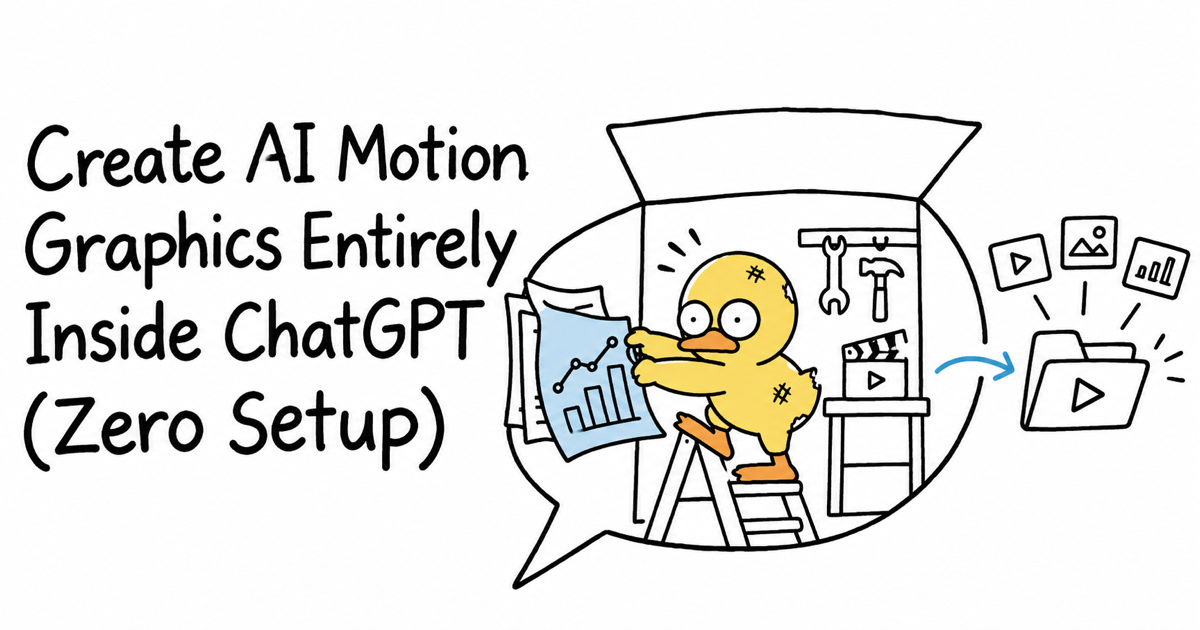
You don't always start an animation with a blank prompt. Sometimes you already have a reference you like, a spreadsheet with the right numbers, or a whiteboard full of ideas.
In this walkthrough, we use Malloy Studio inside ChatGPT to turn all three into editable animations. You can describe the result in the conversation, customize it, and export it without writing code or opening animation software.
Quick Answer
Connect the Malloy Studio plugin to ChatGPT, provide a reference link, CSV, or photo, and explain what you want to animate. Review the result, use the customization controls to refine it, then export or save it to My Templates to continue in Malloy Studio.
Connect Malloy Studio to ChatGPT
Find the official Malloy Studio plugin in the plugin directory and connect your Malloy account. Follow the prompts to allow access, then select Malloy in your conversation.
Our plugin installation guide covers setup and the required Malloy plans. Check the plugin listing for device availability in your account.
Once connected, you can ask Malloy to create animations directly in the chat. The examples below show three different ways to give it a useful starting point.
1. Turn a Pinterest Reference Into Your Own Animation
The first example starts with a Pinterest animation of a folder opening and icons coming out. The reference communicates the movement much more clearly than a long written description could.
Copy the link into your conversation with Malloy selected and ask it to recreate the animation. Let the first generation finish, then compare it with the reference: the folder opening, the cursor, and the order in which the icons appear.
Give the Animation a Purpose
Once the basic motion works, explain how you want to use it. In the walkthrough, we ask Malloy to turn the folder animation into a promotion for a free content creator pack.
A follow-up request could be:
Turn this into a promotion for my free content creator pack. Update the title and the items coming out of the folder to match that offer. Keep the folder-opening sequence.
This is a useful way to work when you can recognize a design you like but don't yet know how to describe every detail. Establish the visual direction first, then adapt the content.
Fine-Tune the Controls
Select Customize to open the settings. For this particular animation, the controls include the title, folder color, accent colors, and icon sizes.
Use those controls to make precise adjustments after the broader creative changes. For more ideas on giving Malloy a starting point, see our motion graphics prompting guide.
2. Turn a CSV Into an Animated Sales Chart
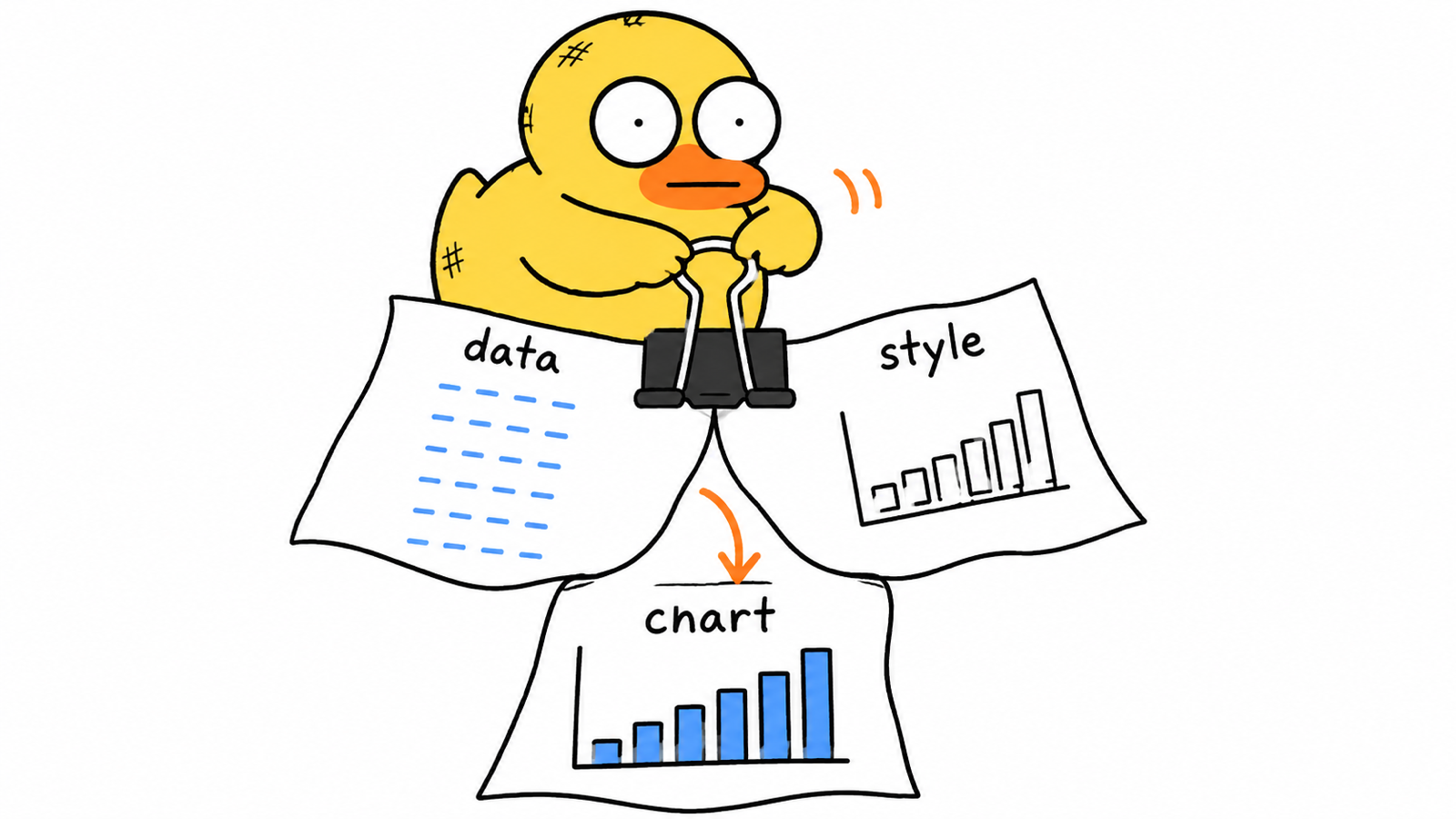
The second example combines two inputs: a CSV containing six months of fictional sales figures in US dollars and an image showing the chart's intended design.
Each input has a different job. The spreadsheet supplies the numbers. The image supplies the visual direction. Your prompt connects them and explains the animation you want.
Here's a suggested starting request:
Use the six months of sales figures in this CSV to create an animated chart. Follow the visual style of the attached reference image. Keep the month labels, values, and US dollar units accurate, and reveal the months in order.
You don't have to type every figure into the chat or explain the entire design in words. That makes this a practical starting point for a client update, results presentation, or video explaining a trend.
Before exporting, compare the animation with the CSV. Check the values, labels, units, and order. Then customize the result in ChatGPT or save it to My Templates to keep working in Malloy Studio.
3. Animate a Whiteboard Photo From Your Phone
The final example starts on a phone. We take a whiteboard photo through ChatGPT and ask Malloy to animate it while preserving the labels and their order.
The whiteboard contains a cost breakdown on the left and connected boxes explaining revenue, cost, and profit on the right. The generated animation recreates both parts and keeps the hand-drawn feel.
This is useful when you've recorded a meeting but the whiteboard is difficult to read in the footage. A separate animation can give viewers a clearer view of the explanation.
Keep the Structure, Then Adjust the Presentation
For this example, the customization settings include:
- Ink color and line thickness
- Title, date, labels, and values
- Background color and transparency
- Animation duration
Check the animation against the original photo before using it. Pay particular attention to the connections between boxes and the order of the labels, since those carry the meaning of the explanation.
The tutorial demonstrates this on a phone; use the plugin listing to check availability on your device.
Save, Continue Editing, and Export
Use Save to My Templates to keep the animation in your Malloy account. You can then open it in Malloy Studio on your laptop and continue editing.
When it's ready, choose a background or transparency and export it for your video or presentation. A transparent background is useful when the animation needs to sit above existing footage; a solid background works when it should fill the screen.
Frequently Asked Questions
Do I Need to Describe Every Number in a Chart?
You can upload a CSV instead. The walkthrough combines the data file with a visual reference, then uses a prompt to explain the intended animation.
Can I Edit the Result Outside ChatGPT?
Yes. Save it to My Templates and open it in Malloy Studio to continue working. The editable motion graphics guide explains why these controls are useful after generation.
Related articles
Keep reading
June 16, 2026
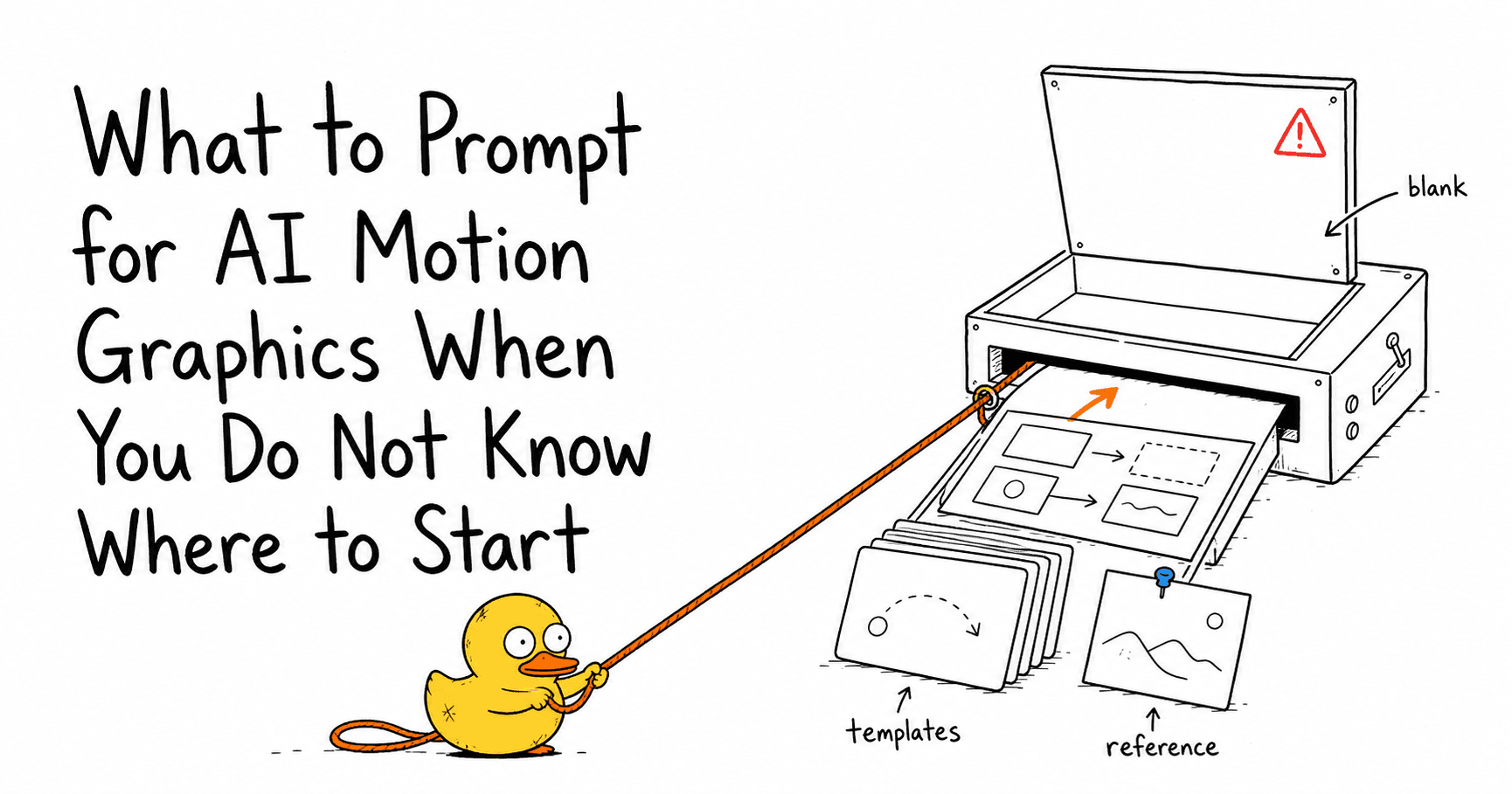
What to Prompt for AI Motion Graphics When You Do Not Know Where to Start
Stuck staring at a blank AI motion graphics prompt? Learn how Malloy Studio helps you start from templates, remix existing layouts, and use image references.
June 22, 2026
AI Generated Content Is Hard to Control: How Malloy Makes Motion Graphics Editable
Learn how Malloy Studio turns AI-generated motion graphics into editable templates with controls for text, colors, layout, timing, X/Y position, and more.
June 8, 2026
Code to Video Generation: Why Editable AI Videos Beat One-Shot Renders
Learn what code to video generation is, why it matters, and how editable, reusable video systems make it easier to create explainers, dashboards, stories, and bulk video content.
Create an Animation From What You Already Have
Choose one starting point: a reference animation, a spreadsheet, or a whiteboard photo. Connect Malloy in ChatGPT, explain what you want to communicate, then review and customize the result. Try Malloy Studio to create your next animation.